
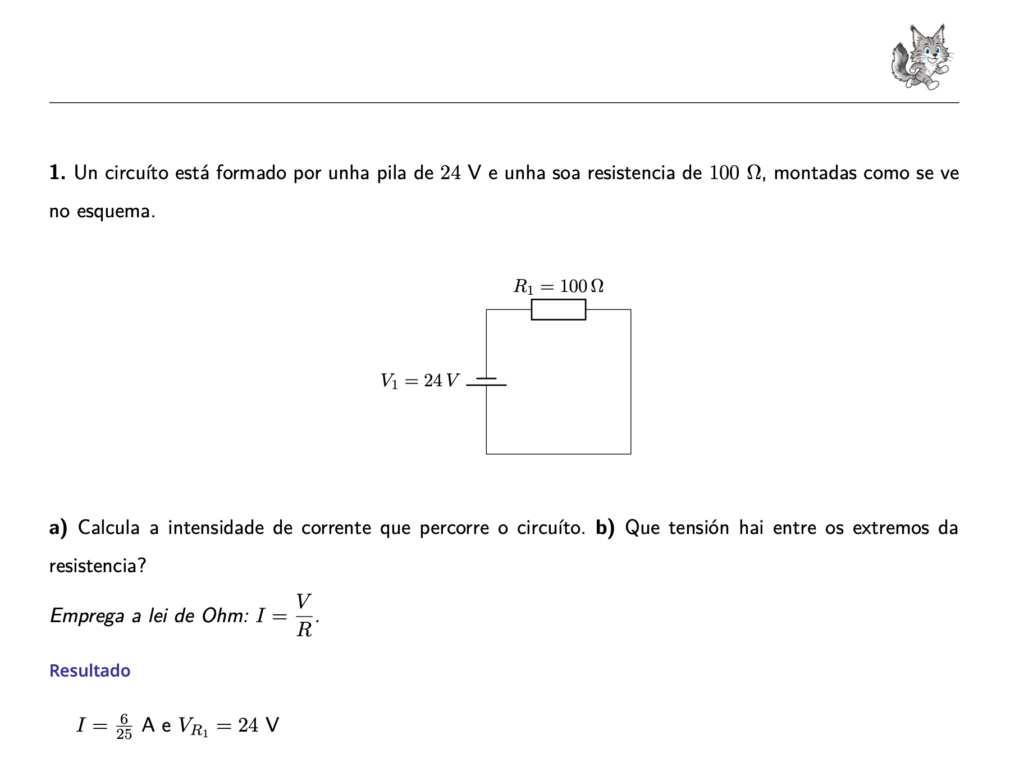
An exercise from the exam generated by Lua: question, circuit diagram and result.
We take a tour of Lua by creating an electricity exam step by step. As we go, you will discover what it can do for you, whether you are a teacher or a student, and whatever subject you work in.
01 · Connect Lua to an AI model
After installing the program, the first thing I recommend is connecting it to an artificial intelligence model. Lua lets you do many things by hand, but that is not the point: the point is for you to work less.
Right now I recommend using a DeepSeek API key: the service is fast, good quality and reasonably priced. There are better services, but they are much more expensive. I don’t know of any free service that works reasonably well: they are slow and the results are poor. To try it out at no cost you can use Google AI Studio, although once it starts charging, it gets expensive. That said, this landscape changes very quickly.
- DeepSeek: deepseek.com/en/platform
- Google AI Studio: aistudio.google.com/api-keys
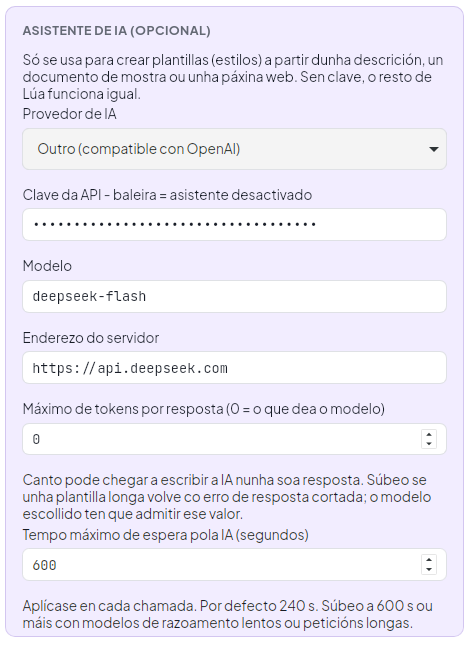
AI assistant settings: provider, API key, model and server address.
02 · Create a project
The name may sound complicated, but a project is simply a folder where we store information. Type the project name and, if you like, the subject or topic, then click Create.
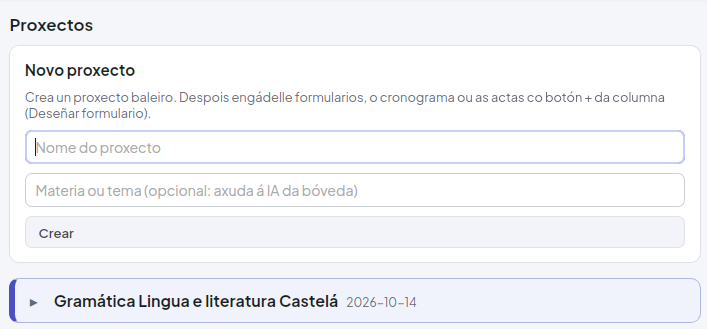
Creating a new project.
03 · Save the project in a folder
Choose where the project will be saved on your computer by clicking “Choose folder…”.
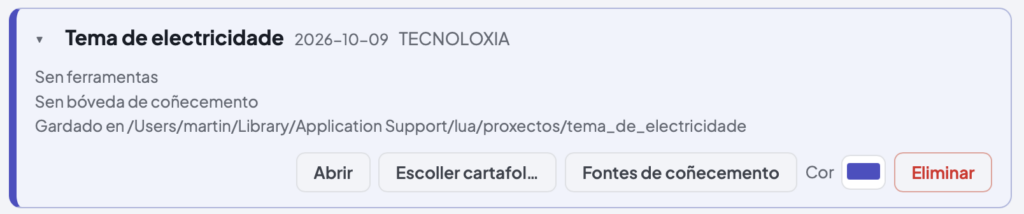
Each project shows where it is saved and the buttons to open it or change its folder.
04 · Design the form
Click the project’s Open button and create a form. The type of field you choose depends on the subject you want to work on:
- For a practice sheet or an exam with mathematical calculations, such as in maths, physics and chemistry or technology, choose the Calculation field.
- One field is enough: you can add as many questions to it as you like.
- Don’t forget to type the form name.
- When you are done, click Save form.
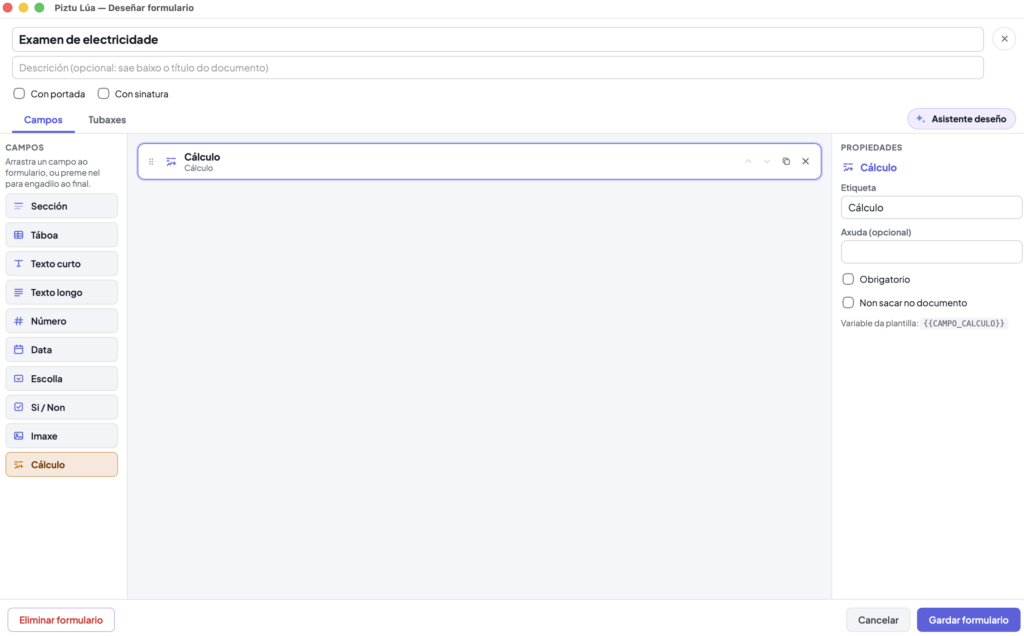
On the left, the available field types; in the centre, the form with a Calculation field; on the right, its properties.
05 · Fill in the exam with the data assistant
You could type the questions one by one, but we are going to use the Data assistant to do the work for us. Click the Data assistant button.
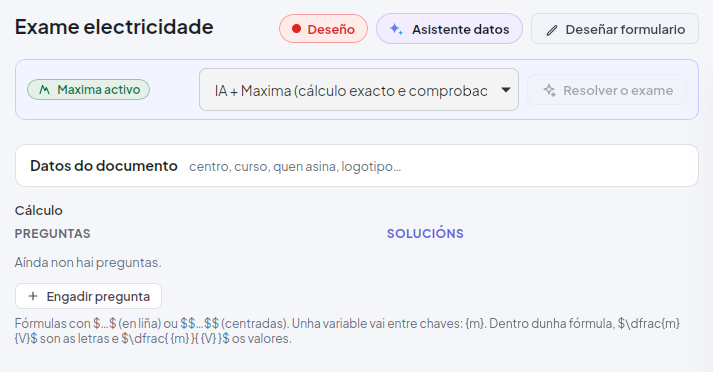
The form, still without questions.
In the assistant, type what you need. For example:
“Create an electricity exam for Year 8 (2nd ESO) Technology, practising Ohm’s law, calculating equivalent resistance, series, parallel and mixed circuits, the power law and energy. It will have 10 exercises, and you must include the electrical circuits where appropriate.”
Lua will gradually fill in the form fields, creating the questions just as requested. Note that it was not asked to calculate the results, only to write the questions.
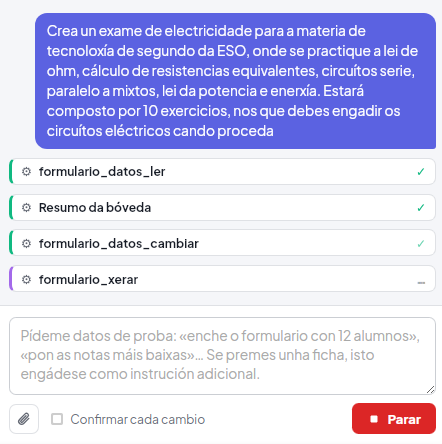
The assistant at work: it reads the form, checks the knowledge vault and adds the questions.
06 · Review and adjust the questions
When it finishes, the program automatically generates the printable document, but you can always adjust it and regenerate it as many times as you like. For each question you can:
- Change the values of the variables or set the range they vary in.
- Give them fixed values, if you don’t want them to change from one exam to the next.
- Edit the questions to your liking.
At this point, you can generate the document with the questions.
07 · Add the solutions
From a teaching point of view, it can be useful to create other documents as well: one with the final answer to each exercise, so students can practise until they get it right, or one with the step-by-step solution.
To do this, before generating the document you need to click Solve the exam, or solve only the problems you choose.
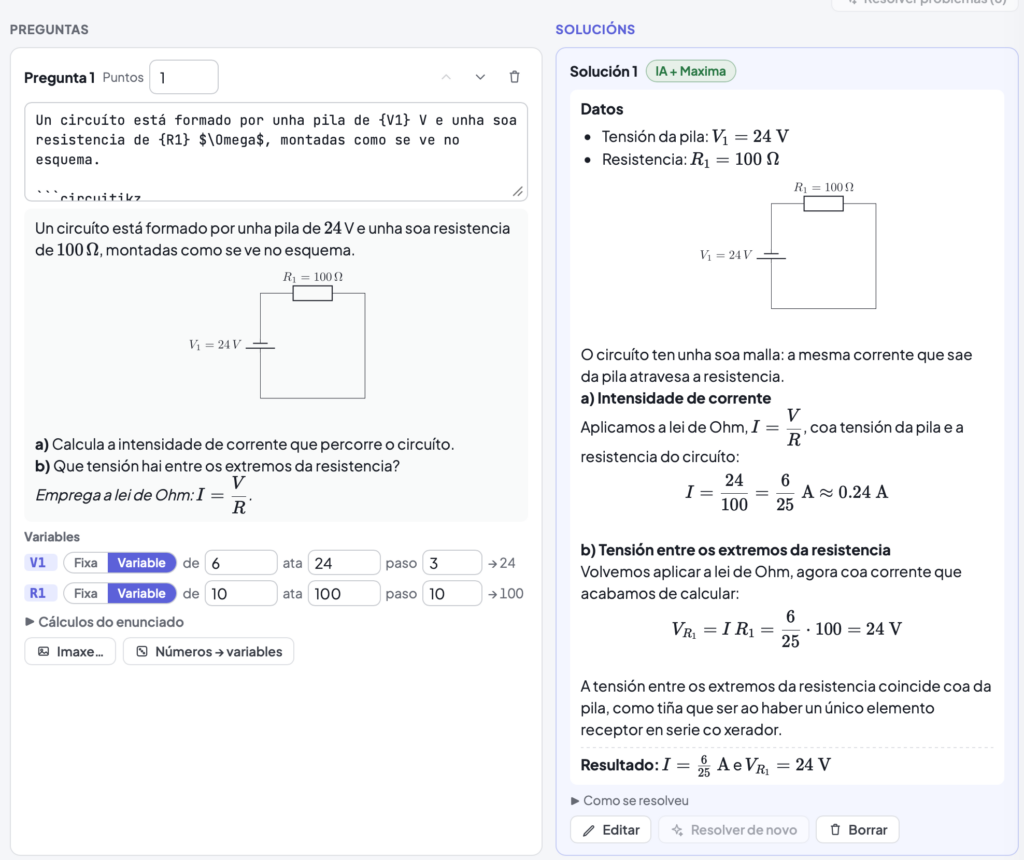
On the left, the question; on the right, the solution calculated with AI and Maxima.
Then choose the option you want in the Solutions selector at the top and click Generate.

The solutions selector, next to the Generate button.
08 · Export the document
The right-hand panel shows the document generated according to your preferences. You can export it in several formats, although PDF is the most common choice.
Lua is free software under the AGPLv3 licence. You can download the latest version and browse the code in the repository.