
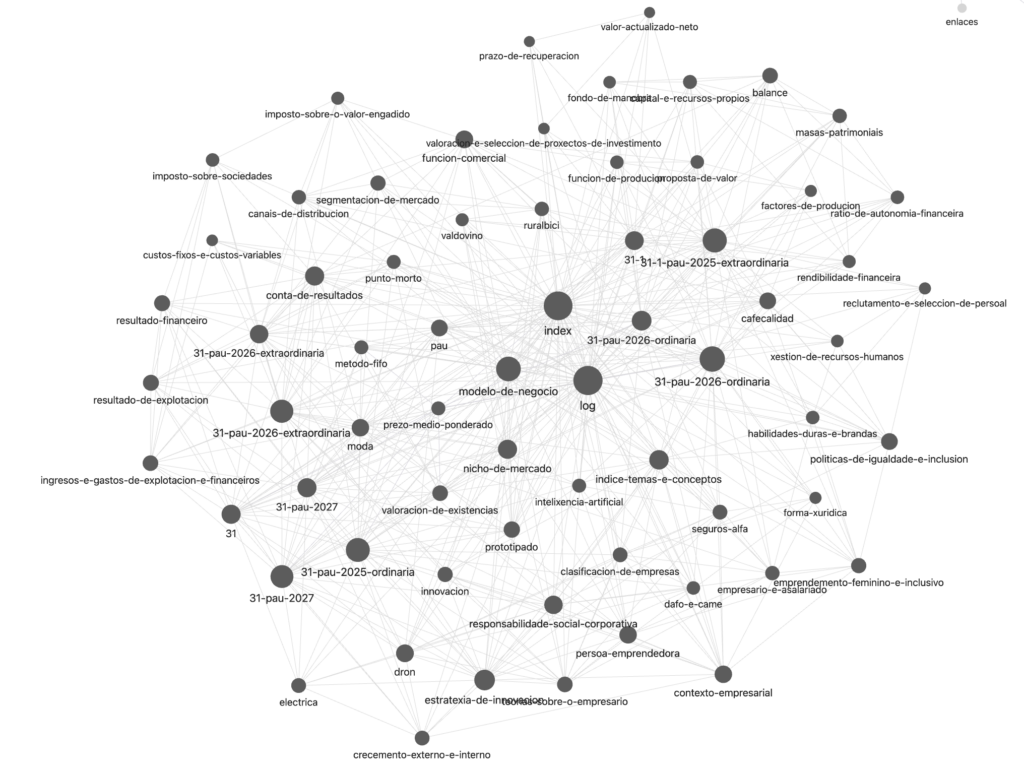
The knowledge vault turned into a map: each dot is a wiki entry and the lines are the links between them.
In this new use case for Lua we show how a student or a teacher can create an exam or a practice sheet from the documents they already have: past exams, class notes, exercise sheets… all gathered in a knowledge vault.
What is it for?
Let’s take a concrete example. You are in your second year of bachillerato (or you teach it) and you’d like to have at hand the questions that have come up in the PAU (Spain’s university entrance exam) in recent years on the topics you are studying, say units 1 and 2. They are very likely to come up again, so if you know them well, you’ll have a better chance of passing.
But there are many other situations where it can help:
- You are a maths teacher with a folder full of exams and PDFs from previous years, some written by you and others downloaded from the Internet. You can create an exam from that material (related to the unit you have taught) or a practice sheet focused on a type of problem your students need to consolidate by repeating it several times.
- You are a special education teacher and need lots of worksheets so that your students gain fluency, through repetition, in a type of problem or calculation.
- You teach at an English language academy and need to print lots of varied worksheets on the present continuous, the past perfect, verbs… You don’t have time to create new ones, but you don’t want to keep repeating the same ones either. You can download exams from official language schools and other official tests and put these worksheets together in no time.
- You are a university student or preparing for a civil service exam: the process is the same. You can create lots of exercise sheets to practise the problems that came up in previous sittings or appear in your course notes, or prepare past exams from other years (very common at university, where they tend to repeat in one form or another).
The idea is always the same, and you can surely think of many other uses.
01 · Create the project and choose the working folder
As we saw in the previous article, a project is simply a folder where we store information. Create it and choose which folder on your computer it will be saved in.

The “Tema 1 e 2” project, with its vault (5 sources and 67 wiki pages) and the Knowledge sources button.
02 · Add the knowledge sources with Buxo
Click Knowledge sources and a new module called Buxo will open. This module is not built into Lua for licence-compatibility reasons with one of the programs it uses.
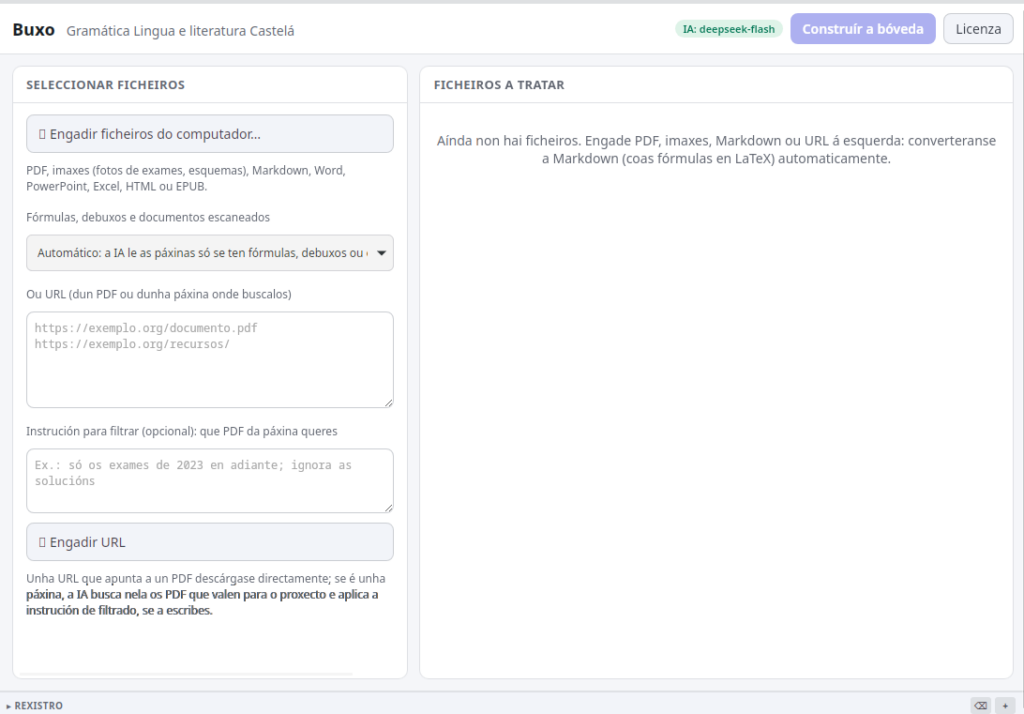
Buxo: add files from your computer or web addresses, and they will appear in the list of files to process.
Choose the files you want to be part of your vault. For example, you can download all the PAU exams from the CIUG, your class notes or exercise sheets you find online. The program automatically converts PDFs to Markdown (plain text that the AI reads easily).
Keep in mind: processing the files uses up tokens, that is, usage of the AI model, and that has a financial cost. Prioritise the information you really need.
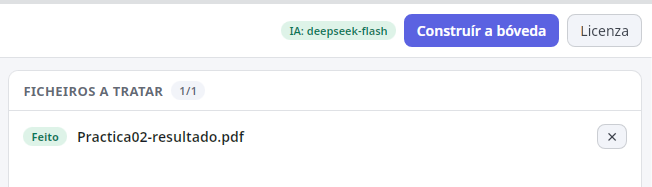
Once the files are converted (“Done”), the vault can be built.
03 · Build the vault
Once all the files are in Markdown, click the Build the vault button. Without going into technical details, Buxo turns the folder into a kind of wiki (in Obsidian format): it creates an entry for each topic covered in the documents and links them to each other, forming a map of all the content, like the one in the header image.

The AI at work: it reads each document and creates the wiki entries.
This step is slow and is the one that uses the most tokens. But once it’s done, you can create as many exams or practice sheets as you like with minimal usage, because the assistant will only look at the wiki entries related to what you ask for.
04 · Design the form
Click the project’s Open button and create a form. The type of field depends on the subject: in this example, an exam for Business and Business Model Design in the second year of bachillerato, we use Long text fields, alternating one field for each question and another for its answer.
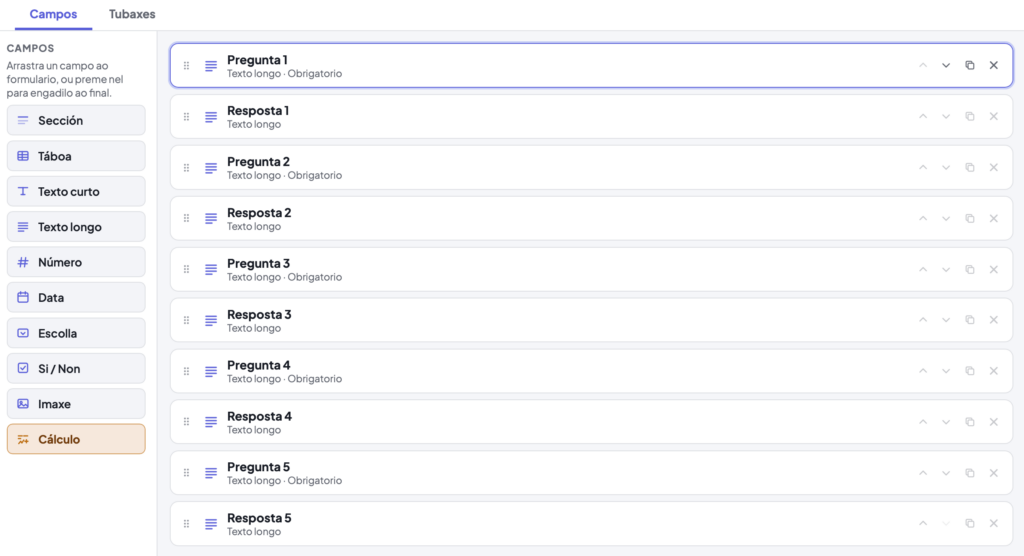
On the left, the field types; in the centre, the form with question-answer pairs.
05 · Fill in the exam with the data assistant
Click the Data assistant button so the AI can look up the information in the vault.

The Data assistant button.
In the assistant window you’ll see that it is connected to the project vault we created in the previous steps. If at any point you don’t want to use it, you can click Disconnect.
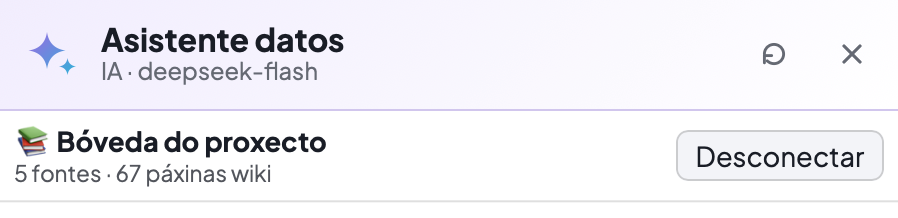
The assistant, connected to the project vault.
To fill in the form, type your request. In this example I also attached a file with the outline of units 1 and 2 (headings, subheadings and key concepts), which I had generated earlier with Google’s NotebookLM from the textbook PDFs. This was the request:
“Fill in the form with 5 questions that appear in the documents in the project vault and also answer them by looking up information on the Internet, preferably in bachillerato virtual classrooms from secondary schools.”
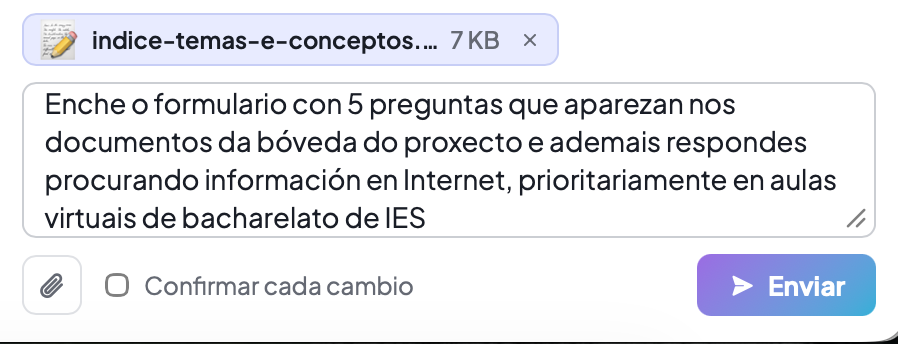
The request to the assistant, with the outline of the units attached.
Lua gradually fills in the form with questions that came up in PAU exams and answers each one. If you also store the textbook PDF in the vault, you can ask it to look for the answers in the vault itself.
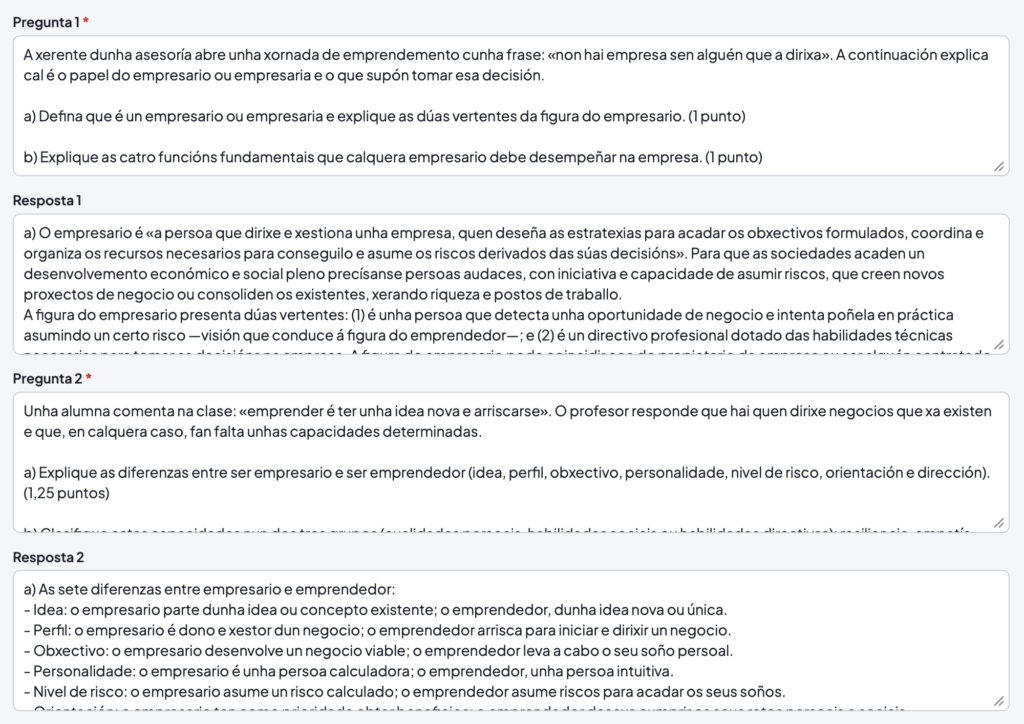
The result: PAU-style questions on units 1 and 2, with their answers.
06 · Review and export
Touch up the information in the fields if you think it’s necessary and click Generate. Then save the document in the format you prefer: PDF, ODT, DOCX…
Lua is free software under the AGPLv3 licence. You can download the latest version and see the code in the repository.