 Piztu
You are probably a teacher who doesn’t manage the computer lab, because another teacher or an outside company already takes care of that. If so, the Piztu program won’t bring you any benefit. Even so, you can use Tao as the classroom file manager: Tao is a system for creating assignments and collecting students’ work very smoothly. Bear in mind that Tao needs somewhere to store the files, which can be your own computer, another computer at the school or even an external server, such as a VPS.
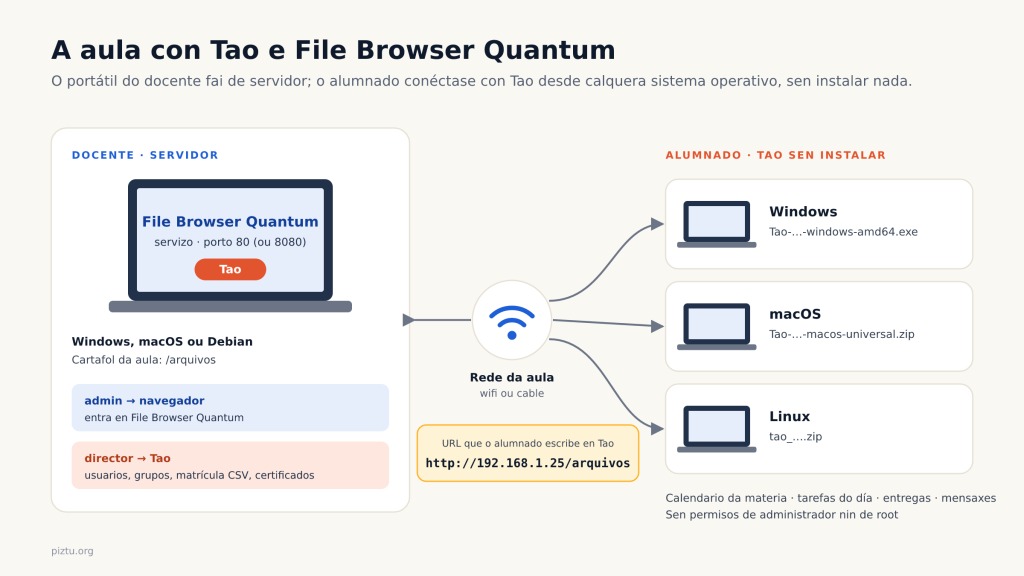
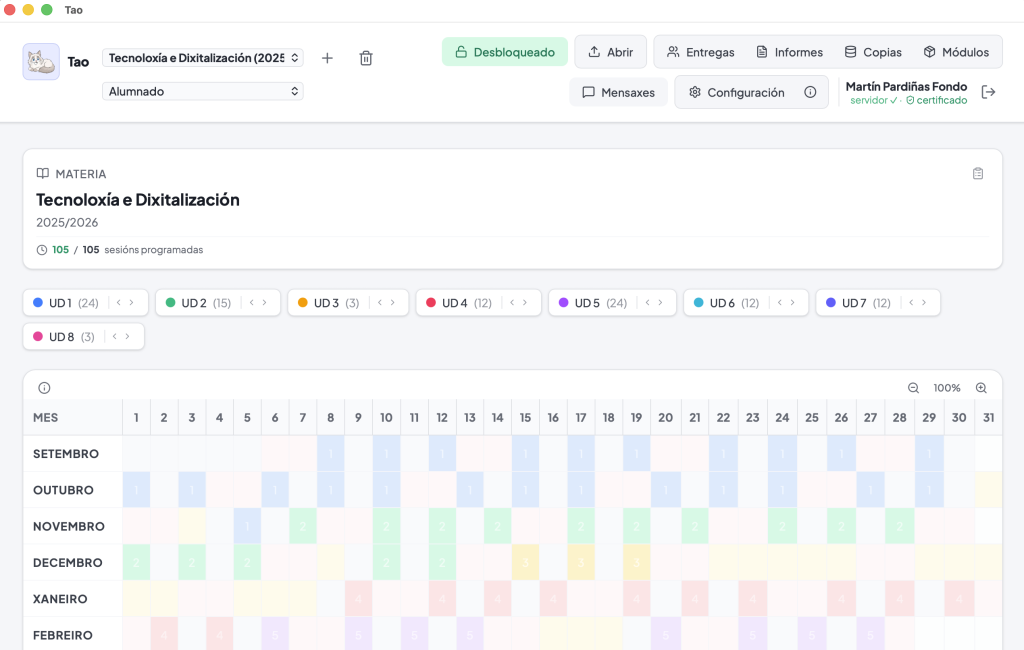
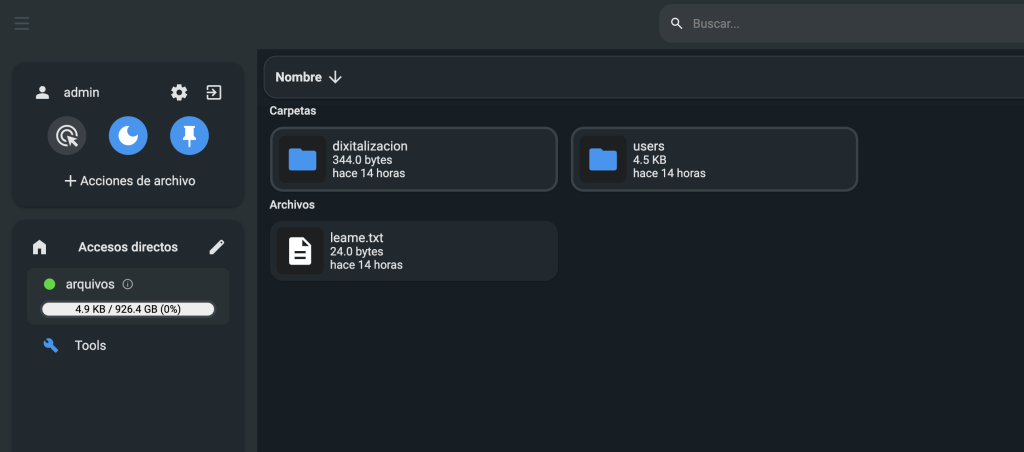
The best part is that you can install the Tao + File Browser Quantum pair on your laptop, whether you work with Debian (or a derivative), macOS or Windows. Students, on their own computers (which can also run whichever operating system they prefer), connect to the File Browser with Tao and get the course calendar, which shows the teaching units. From there they can download the assignments set for the day, complete them and, if the teacher has enabled this feature, message their classmates.
In short: you, the teacher, install File Browser Quantum and Tao on your computer, whatever your operating system. Students run Tao on their computers, also with any operating system, and without installing it, so they need no administrator or root permissions. All you have to do is give them your laptop’s IP address so they can add the URL in Tao, together with their credentials. You can enrol students in Tao by hand or with a CSV file in the same format as the one used for bulk enrolment in Moodle.
Installing on the teacher’s computer
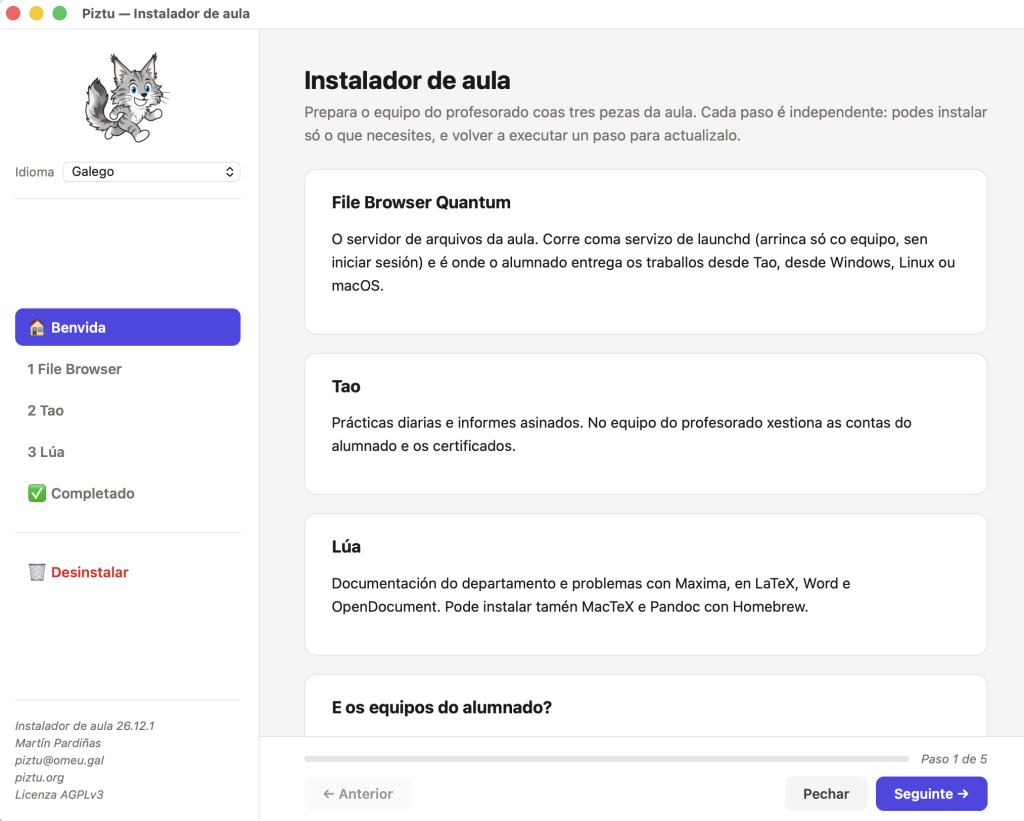
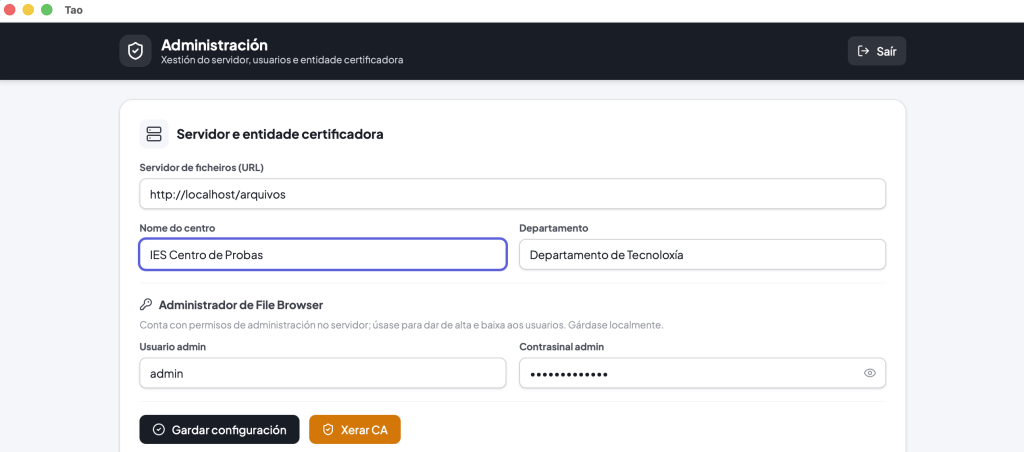
The classroom installer sets up the teacher’s computer in a single wizard: it installs File Browser Quantum as a service (on port 80 if it’s free, otherwise on 8080, always under /arquivos), Tao already configured to point to that File Browser and, optionally, Lúa with its dependencies (LaTeX and Pandoc). When it finishes, it shows the server addresses you need to give your students.
| System | Download | How to run it |
|---|---|---|
| Windows | instalador-aula.exe | Double-click it. Windows will ask for administrator permission. |
| Debian (amd64) | instalador-aula-debian-amd64 | In the terminal: chmod +x instalador-aula-debian-amd64 && ./instalador-aula-debian-amd64. It will ask for the root password. It needs the libgtk-3-0 and libwebkit2gtk-4.1-0 packages. |
| macOS 12 or later (Apple Silicon and Intel) | instalador-aula-macos.zip | Unzip it and double-click instalador-aula.app. As it isn’t notarized, the first time right-click → Open (or System Settings → Privacy & Security → “Open Anyway”). |
All versions are on the classroom installer releases page, each with its .sha256 file to verify the download.
Tao on students’ computers
Nothing is installed on students’ computers. Each student downloads Tao for their system from the Tao releases (v26.11.5) and runs it:
- Windows: Tao-26.11.5-windows-amd64.exe. If SmartScreen warns you, “More info” → “Run anyway”.
- macOS (universal): Tao-26.11.5-macos-universal.zip. Unzip it and open
Tao.app; the first time, right-click → Open. - Linux: tao_26.11.5.zip. Unzip it and run the
taobinary (if it won’t start, make it executable withchmod +x tao).
The first time they run it, students enter the server URL (for example, http://192.168.1.25/arquivos, or http://192.168.1.25:8080/arquivos if port 80 was taken) and the credentials you gave them. Tao also tries to find the server by the name of the teacher’s computer.
Two admin users: admin and director
One detail that often causes confusion is the need for two users: admin and director. The admin user is created when File Browser Quantum is installed; with it and its password, the teacher logs into the File Browser through the web browser. On top of that, in Tao you need the director user to create users, manage groups, handle certificates and so on. To give the director user a password, just type “director” in Tao’s user field and press Enter: the system will make you set the password.
Naturally, you’ll wonder why two admin users are needed. The short answer: if the server isn’t installed on your own computer, the file manager would be easy to attack. So it’s a security measure.
Remember: to reach the file manager from the web browser, you use the “admin” user; to log in from Tao, the “director” user.
Lúa
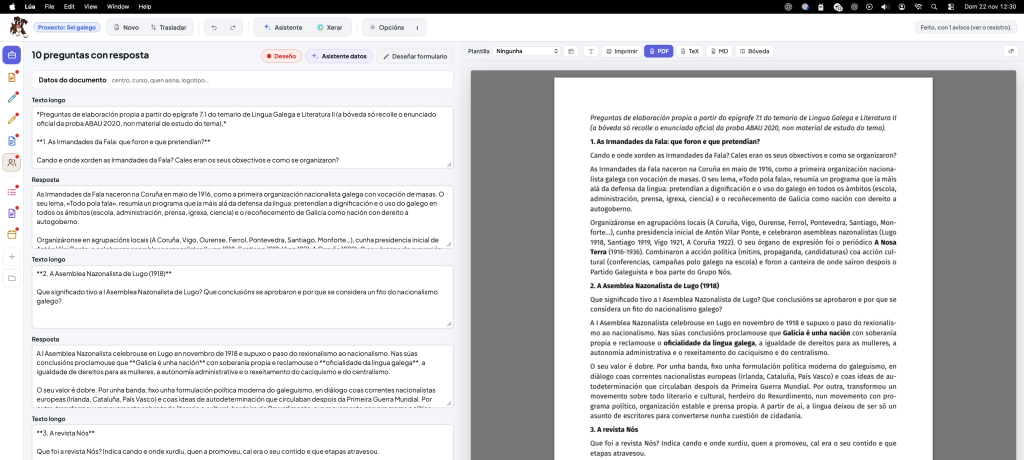
Finally, Lúa can also be installed on any operating system. It’s a very useful piece of software, because it lets you compile information, as explained in the post Lua: reports from public data. Is climate change visible in Vimianzo?. With the vaults, you can pull the university entrance exam (PAU) questions on a particular topic: phonetics, derivatives, etc. And, of course, you can create worksheets and exams quickly while keeping your school’s or department’s branding.
If you used the classroom installer and ticked Lúa, you already have it. If you only want Lúa, download its installer from the Lúa releases (26.11.1):
- Windows: lua-installer.exe. Run it as administrator. Automatic updates don’t work on Windows yet: to update, run the installer again.
- macOS: lua-installer-macos_26.11.1.zip. Unzip it and open the installer; the first time, right-click → Open.
- Debian: luar-instalar_debian_26.11.1.zip. Unzip it and run
lua-installerin the terminal:chmod +x lua-installer && ./lua-installer.