
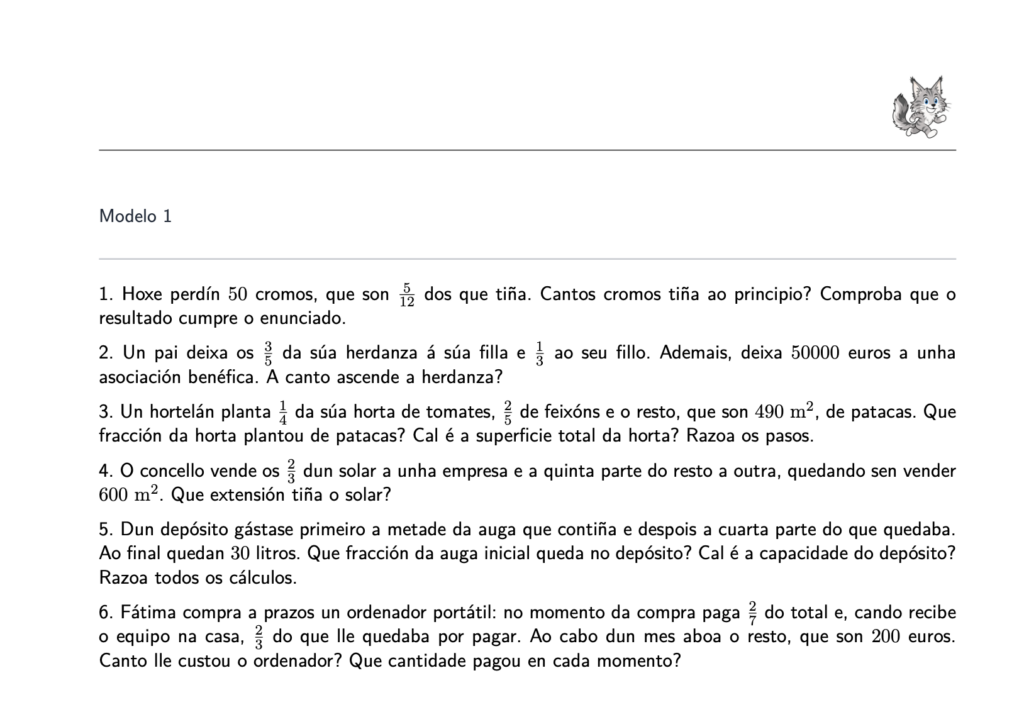
A worksheet generated by Lua: every version has the same problems, but with different numbers.
One of Lua’s strengths is that it can create many versions of the same practice sheet by changing the numbers in each exercise. In this use case we show how to generate individualised worksheets, very useful in maths, physics and chemistry or technology.
What is it for?
It has two uses:
- If you are a student, you can create several worksheets with different values to consolidate one or more types of problem, repeating them as many times as you need.
- If you are a teacher, you can use it in the same way, especially if you work at a private tutoring school, in catch-up classes or in special education. But there is another very interesting option: creating one practice sheet per student, so that each one gets the exercises with different numbers, and printing them with the final answer.
In this last case something curious happens: some students who don’t know how to solve the problem do a kind of reverse engineering, trying to work out how the formulas are used to reach the answer you gave them. And that is learning too.
01 · Create the project
As we saw in the first article of the series, a project is simply a folder where we keep the information. Create it and choose which folder on your computer it will be saved in.
02 · Add a form with calculation fields
Click the project’s Open button and create a form. This time, instead of text fields, insert a Calculation field for each problem: it is the field type that lets you work with variables.
03 · Enter the problems with variables
Now it’s time to add the data, that is, the problems. As in the previous cases, the Data assistant can help you in two ways:
- Type your request directly and attach a reference file (a worksheet, some class notes…).
- Connect the assistant to a knowledge vault and ask it to look for the exercises there. If the vault only holds the material you are interested in, the assistant will stick to that type of exercise and you will avoid others that add nothing at this point.
Very important: ask the assistant to enter the numbers as variables within a range, from a minimum to a maximum. Without variables, all the worksheets would be identical.
Each variable appears in the question between curly brackets, for example {v} or {t}, and underneath you can set whether it is Fixed or Variable and which values it can take.
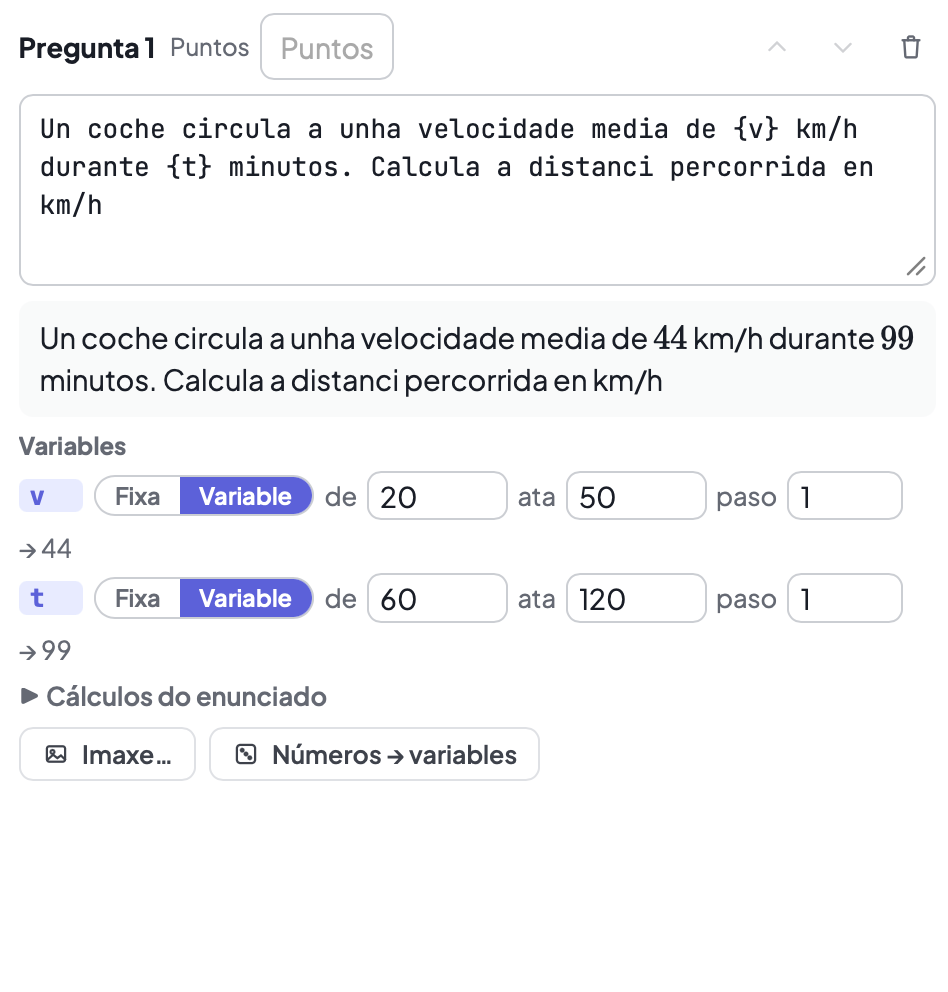
The question with the variables {v} and {t}, a preview with specific values and the range of each variable.
In the example, the average speed can take any value between 20 and 50 km/h, and the time between 60 and 120 minutes. The Numbers → variables button turns the numbers already written in the question into variables.
04 · Add an image to the question
With the Image… button you can add a drawing or diagram to the problem.
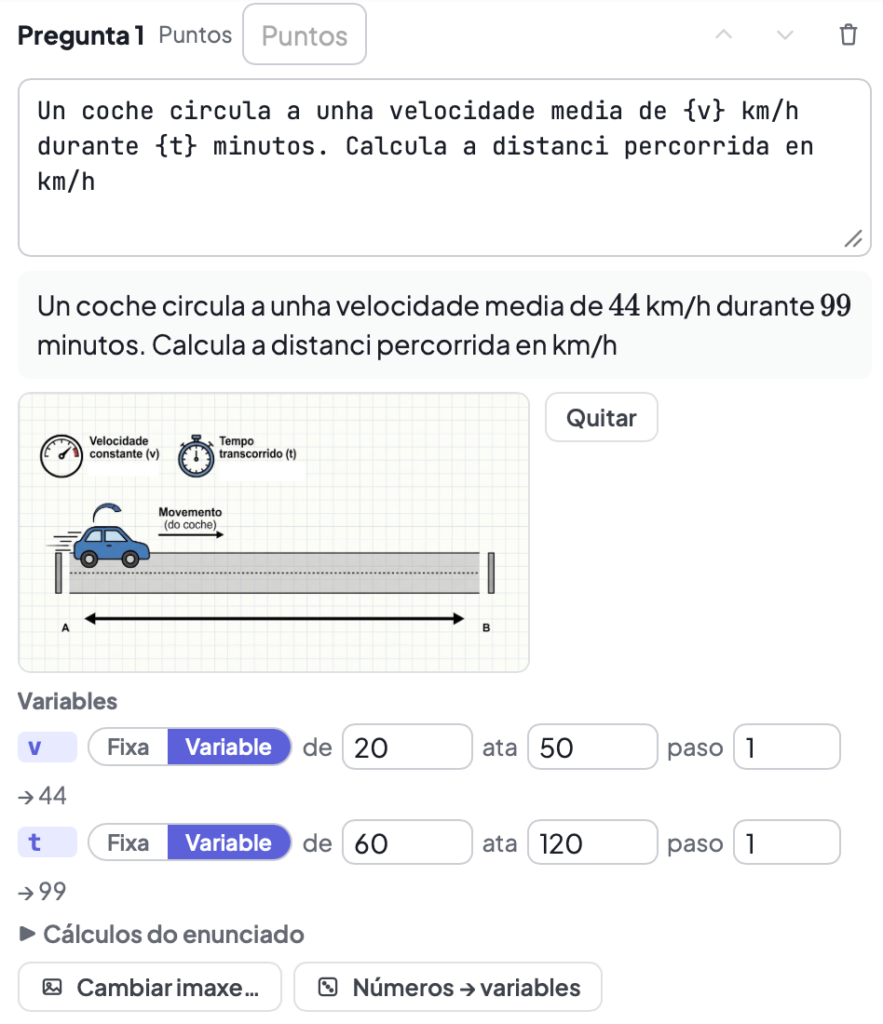
The problem with an attached illustration, generated with another AI.
You can generate this image with another AI, such as ChatGPT or Gemini, but you can also ask the data assistant itself, which will draw it in LaTeX using the TikZ library. The advantage of the second option is that the drawing can also use the variables, so each worksheet will show its own values in the picture.
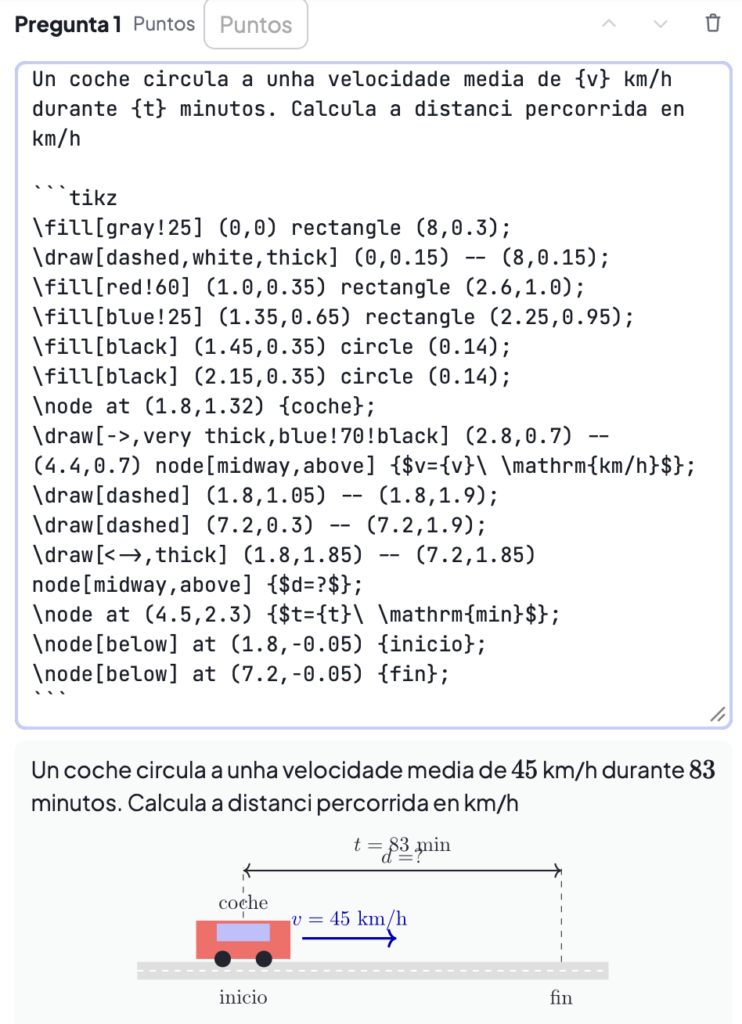
The TikZ diagram: the code goes in the question itself and the values of v and t change in every worksheet.
Tip: if any text in the drawing overlaps another, as happens in the picture with the time and the distance, ask the assistant to fix it.
05 · Solve the exercise
In the cell on the right you can solve the exercise and customise the solution, adjusting how the answer is reached. This step is needed if you want to print not just the question, but also the final answer or the step-by-step solution.
06 · Choose how many worksheets you want
In the generation bar you will find three options:

The Seed, Iterations and Solutions options.
- Iterations: the number of worksheets to generate, for example one per student. Each iteration creates a new page in the output file.
- Seed: when you increase the iterations, the seed becomes random, which means the values given to the variables will be different in each worksheet.
- Solutions: choose whether to print only the question, the question with the final answer or the question with the step-by-step solution. The solution can appear below each exercise or at the end of the practice sheet.
07 · Adjust the design and export
You may not like the result the first time, but remember that you can change the template in the PDF design window (font, colour, text size, cover page…) and also use the assistant to change the format.
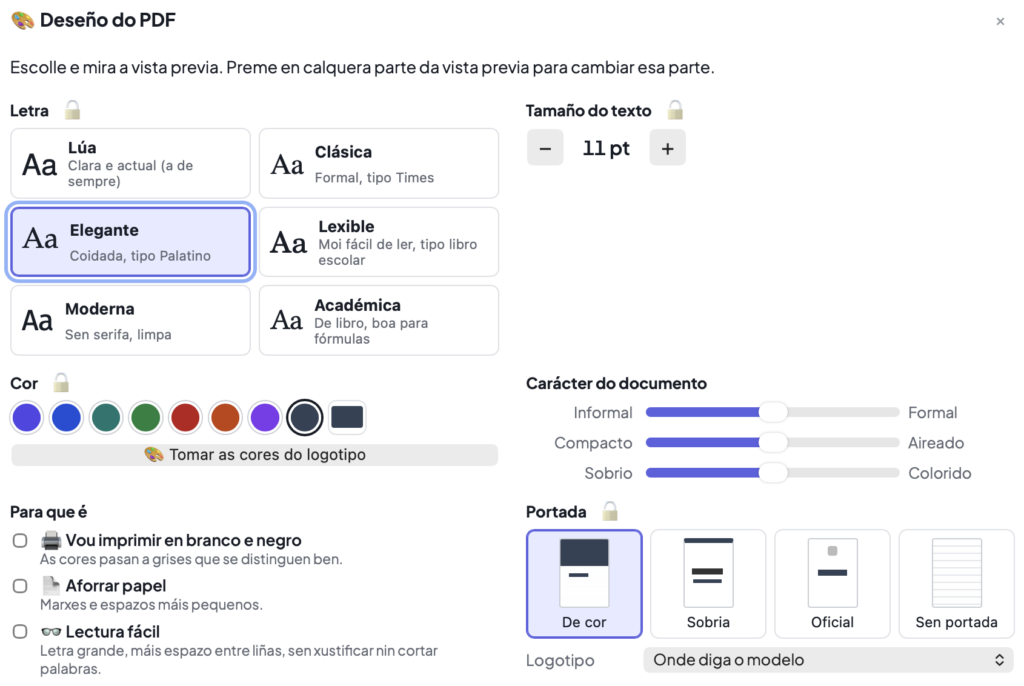
PDF design: choose the font, the colour, the cover page or whether you will print in black and white.
Click Generate and you will get a single file with one worksheet per page, like the one in the header image, ready to print.
Lua is free software under the AGPLv3 licence. You can download the latest version and see the code in the repository.