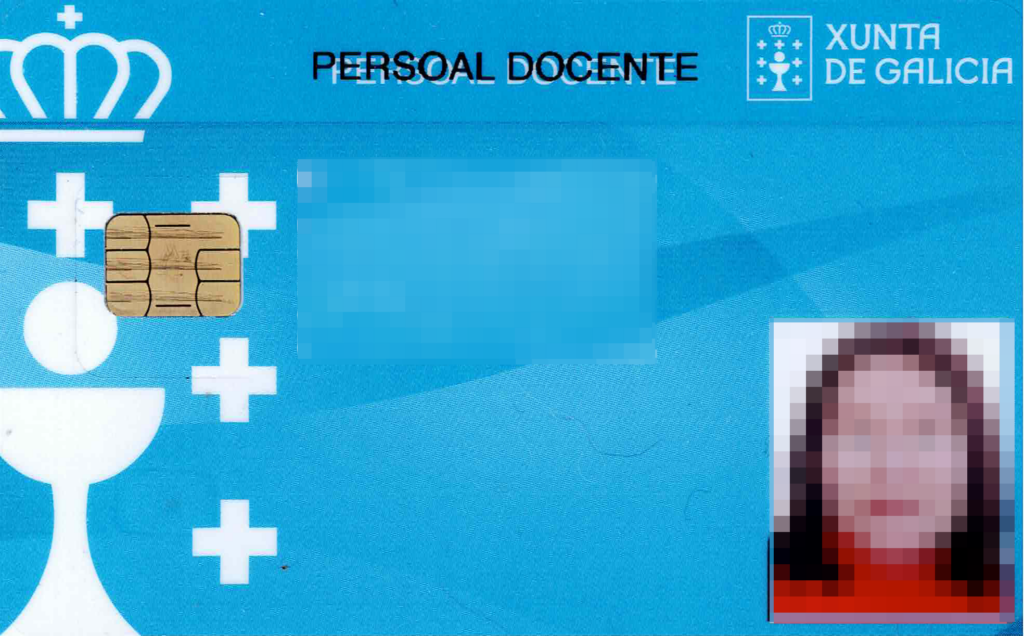
First of all, we need a card reader. Specifically, the laptops sent for the Guidance Department have a reader on one of their sides.
Next, we’ll install the software needed for the reader to work:
su root (enter the password)
sudo apt install pcsc-tools pcscd pinentry-gtk2 libccid
And we enable the service:
sudo systemctl enable pcscd
We check that the service is active:
sudo systemctl status pcscd
To check that the reader detects the card, we run in the terminal:
pcsc_scan
When you insert the card (with the photo facing up, in the case of the Department’s laptops), you’ll see it’s detected:

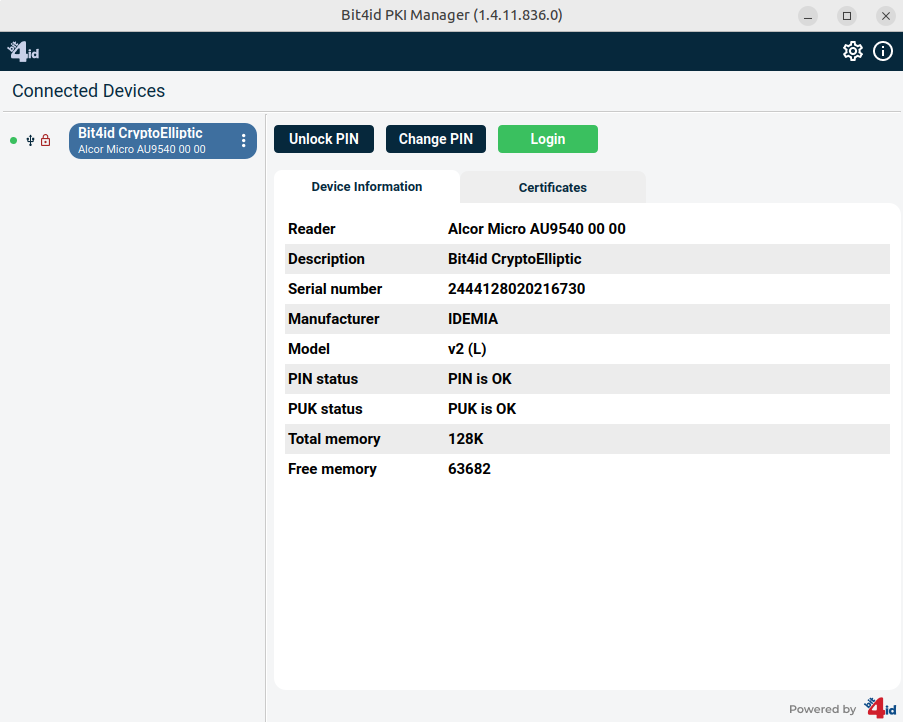
Next, we’ll install a program that lets us customize the card’s PIN and that also installs some libraries needed to add the certificate to the browser. To do this, go to the following URL:
https://cdn.bit4id.com/es/middleware/Linux/Linux.html
And download the bit4id program from the following link:
https://cdn.bit4id.com/es/soporte/downloads/middleware/Bit4id_Middleware.zip
Unzip the .zip file and you’ll get a Bit4id_Middleware.deb package that you’ll need to install on the computer, using GDebi, for example.
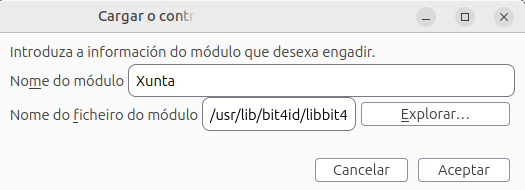
Next, we’ll add the certificate to Firefox. To do this, open Firefox and go to Settings > Privacy & Security > Connection and software security > Advanced settings > Manage security devices, and click the “Load” button.
In “Module” add Xunta, for example (the name doesn’t matter).
And for the module filename: /usr/lib/bit4id/libbit4xpki.so
And finally, we need to set up the AutoFirma program to digitally sign documents. To do this, we install AutoFirma if we don’t already have it. We download it from its website:
https://firmaelectronica.gob.es/content/dam/firmaelectronica/descargas-software/autofirma19/Autofirma_Linux_Debian.zip. After unzipping, we’ll get an autofirma_1_9.deb file, which we then install with GDebi.
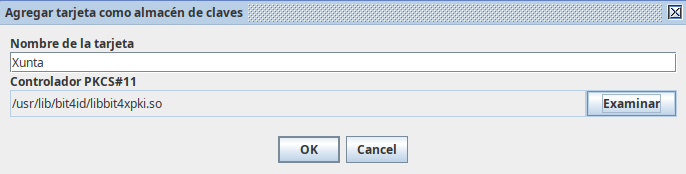
Once installed, open the program and click “Use default store”, then go to Tools > Preferences > Key stores and add a new certificate, with the same configuration used to install the certificate in Firefox. With this, you’ll be able to sign any PDF document with AutoFirma. Keep in mind that every time you use AutoFirma, the program will ask for the PIN that the Xunta sent you by email; so having the card isn’t enough — you also need to know the PIN.