
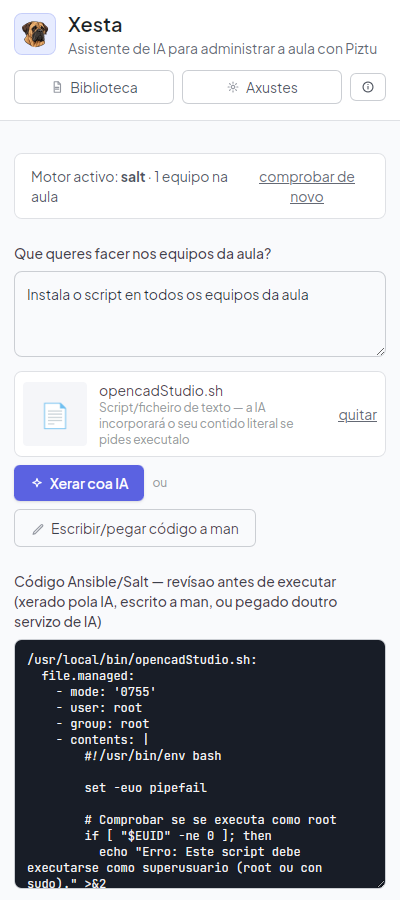
I wanted OpenCADStudio on every computer in the lab, with my own configuration. Instead of going machine by machine, I described what I needed to Xesta and deployed it to all of them at once.
This term I wanted to use OpenCADStudio —a free CAD program, with 2D drafting and 3D modelling— with my groups. Installing it on one machine is easy, but the lab has around thirty workstations, and doing it one by one takes a whole afternoon that also has to be repeated every time a machine is reinstalled.
01 · One script, turned into an action by Xesta
With help from Gemini I put together a script that always installs the latest version of OpenCADStudio (it checks dependencies, queries the GitHub API and installs the Snap package). I tested it on one machine and it worked.
⬇ Download the script (instalar_openCadStudio.sh)
That solves one machine. To get it onto the other twenty-nine, I opened Xesta and described, in Galician, what I needed: turn that script into an action that can be launched over the whole lab at once. I didn’t have to touch the administration tool underneath — Xesta returned a Salt state that places the script on each machine and then runs it.
⬇ Download the Salt state (opencadstudio.sls)
02 · Test on one, deploy to all
I applied it first to a single machine and checked that it opened properly. With that done, I launched it over the whole group and shortly it was on every workstation. I saved the action in Xesta’s library: when a machine is reinstalled or a new one arrives, I don’t start from scratch.
⚠️ If the installation involves restarting the machines, launch it when no students are working.
03 · What about my own customizations?
Installing the program is only half the job: I also have my own keyboard shortcuts and preferences, and I wanted those on every machine too. When installed as a Snap package — as is the case with this script — OpenCADStudio keeps all of the user’s configuration in a fixed path inside its home:
~/snap/open-cad-studio/current/.config/OpenCADStudio/
Inside that folder I keep two files that I then copy to each machine along with the program itself:
- ocad.pgp — the keyboard shortcuts. In my case, adapted to what students already know from FreeCAD (commands like
Lfor line,Cfor circle,Mfor move…), so nobody has to relearn anything. - settings.json — the program’s general configuration: theme, default save format, general keyboard shortcuts, language, and so on.
With these two files in that path, any machine opens OpenCADStudio already set up the way I use it, without touching anything by hand on each workstation.
As with the installation, I also described this step to Xesta so I wouldn’t have to copy these two files machine by machine: it gave me back another Salt state that creates the configuration folder and places ocad.pgp and settings.json there on every workstation.
⬇ Download the Salt state (personaliza_opencadStudio.sls)
04 · What this changes in practice
The interesting part isn’t the specific program, it’s the workflow: I describe what I want in plain language, Xesta generates it, I check it on one machine and, if it works, deploying to the whole lab is one more step, not another afternoon. And it stays saved and reusable for reinstalls.